Spesen Portal user guide
How employees, accounting and admins use the Hotelinnovativ expense app — on desktop and on the phone.
1. Log in
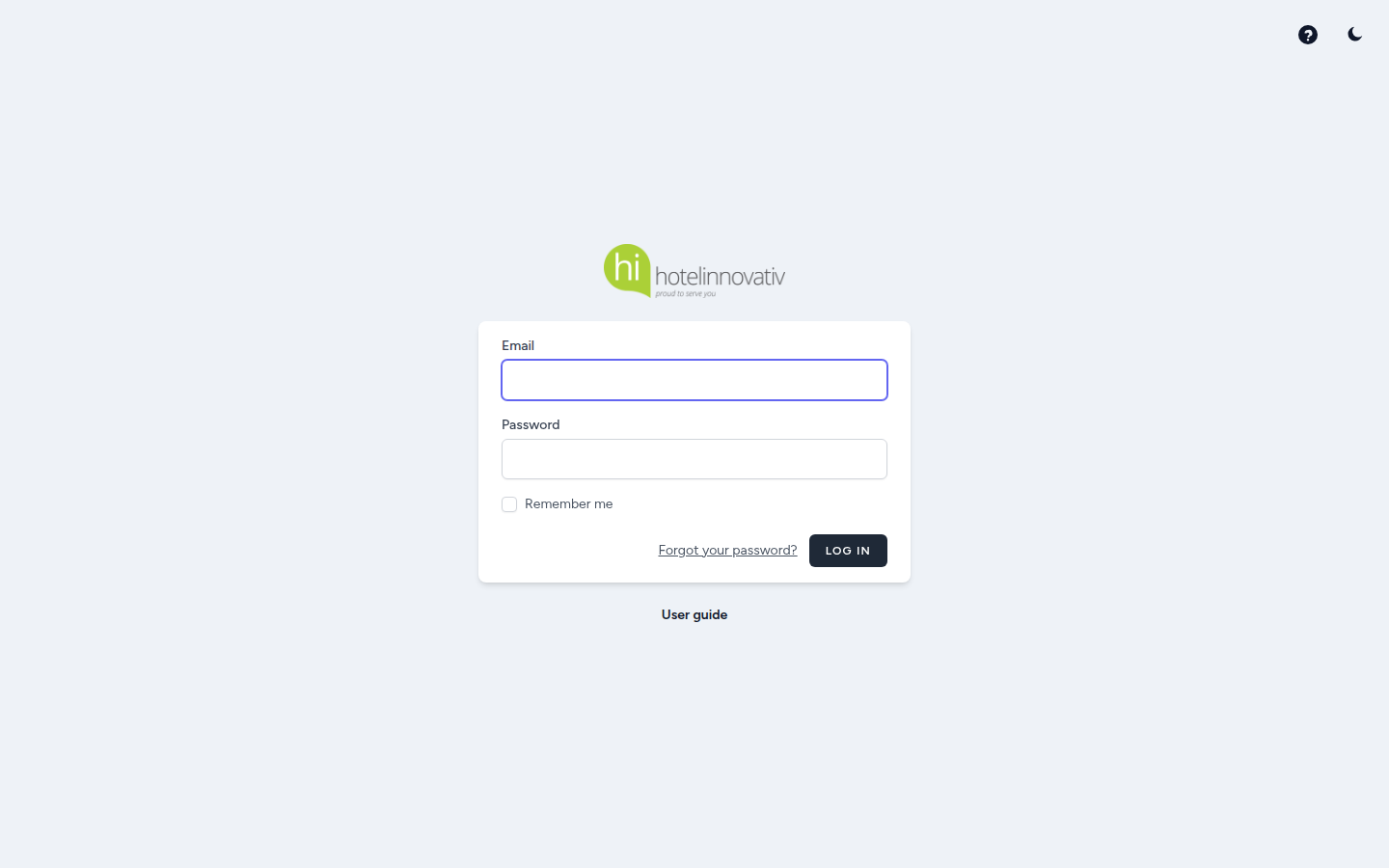
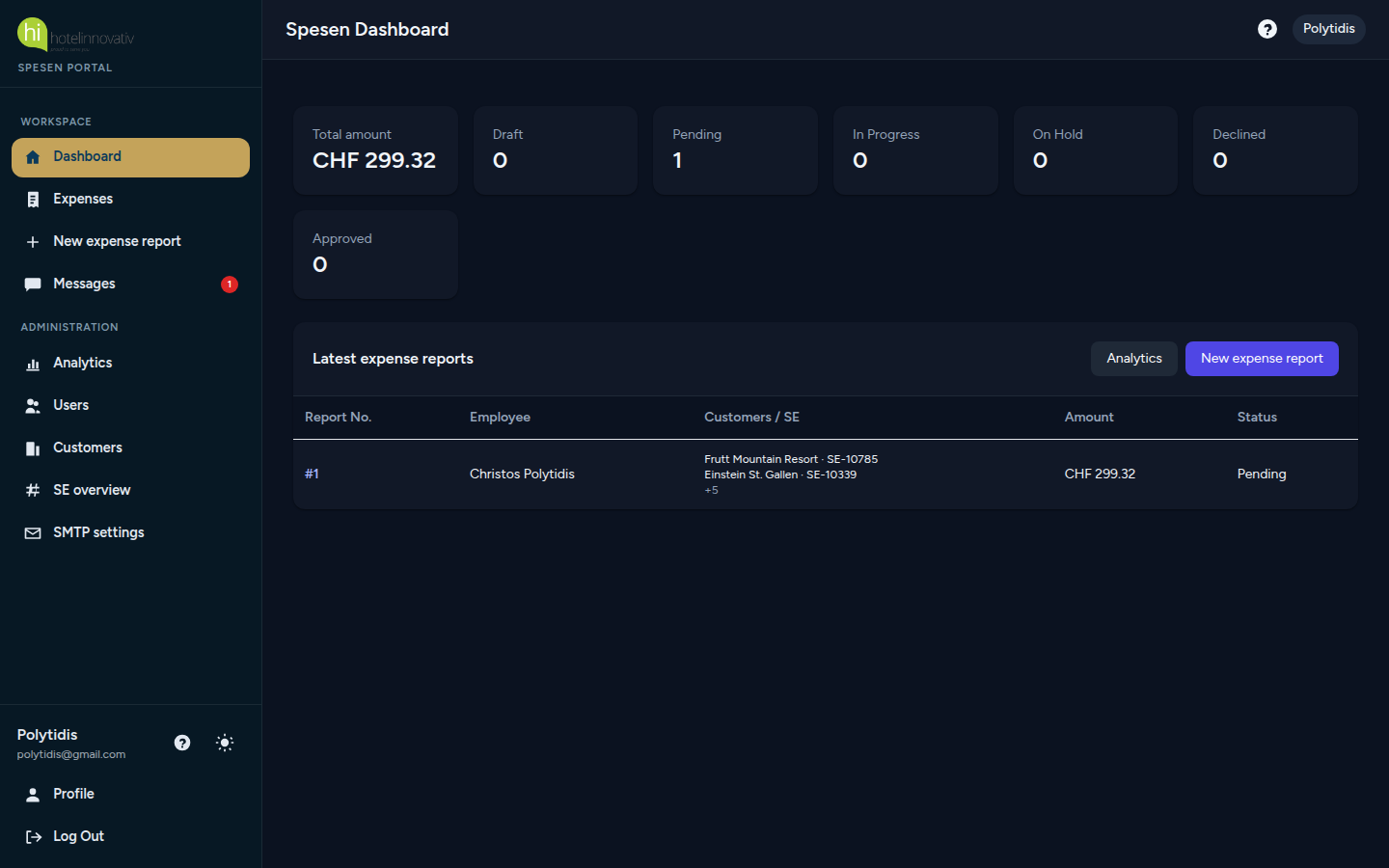
Open https://spesen.hotelinnovativ.tech. Your admin creates the account and you receive a welcome email with a link to set your own password. If you forget it, use Forgot your password? on the login page.
2. Desktop sidebar & mobile bar
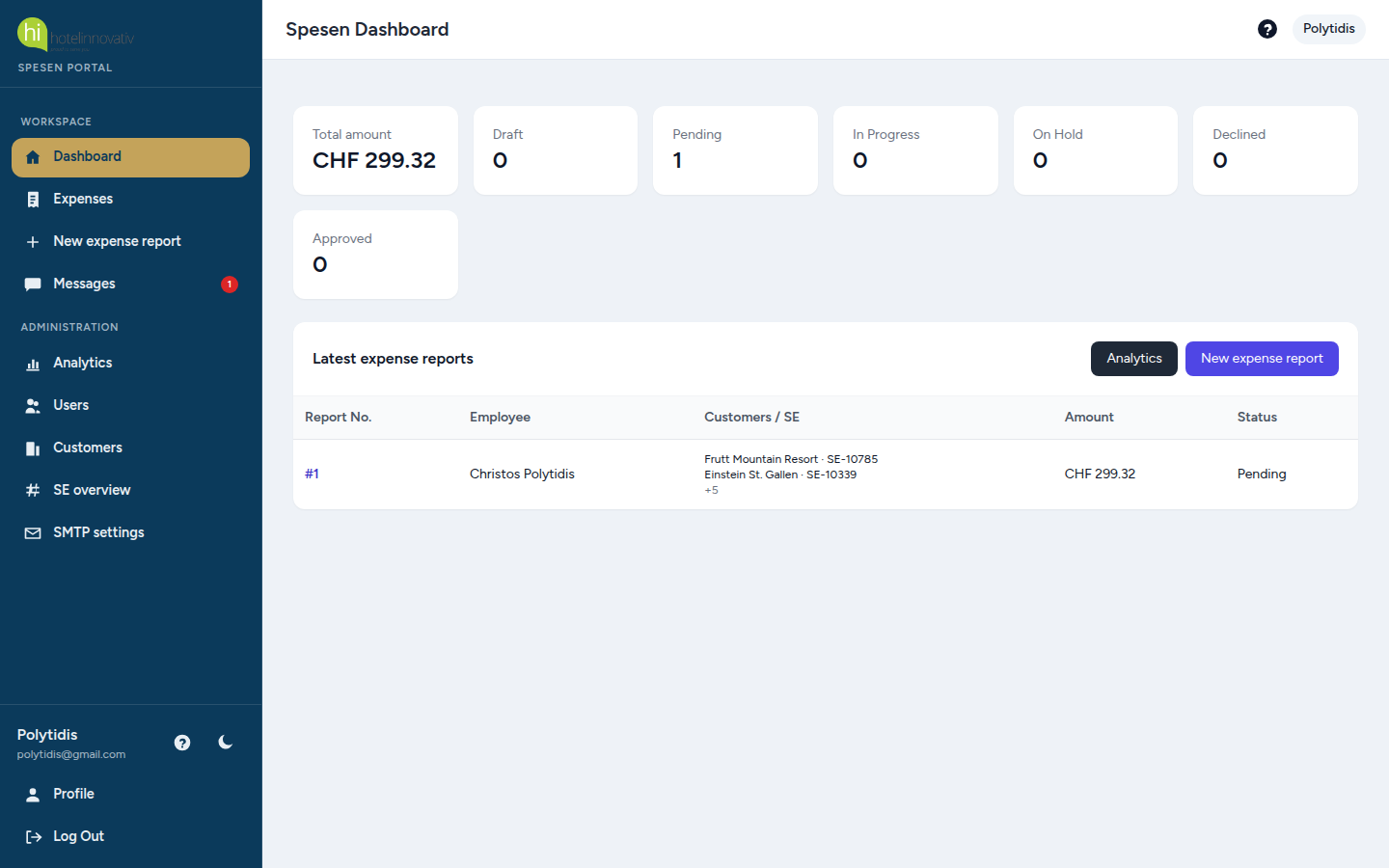
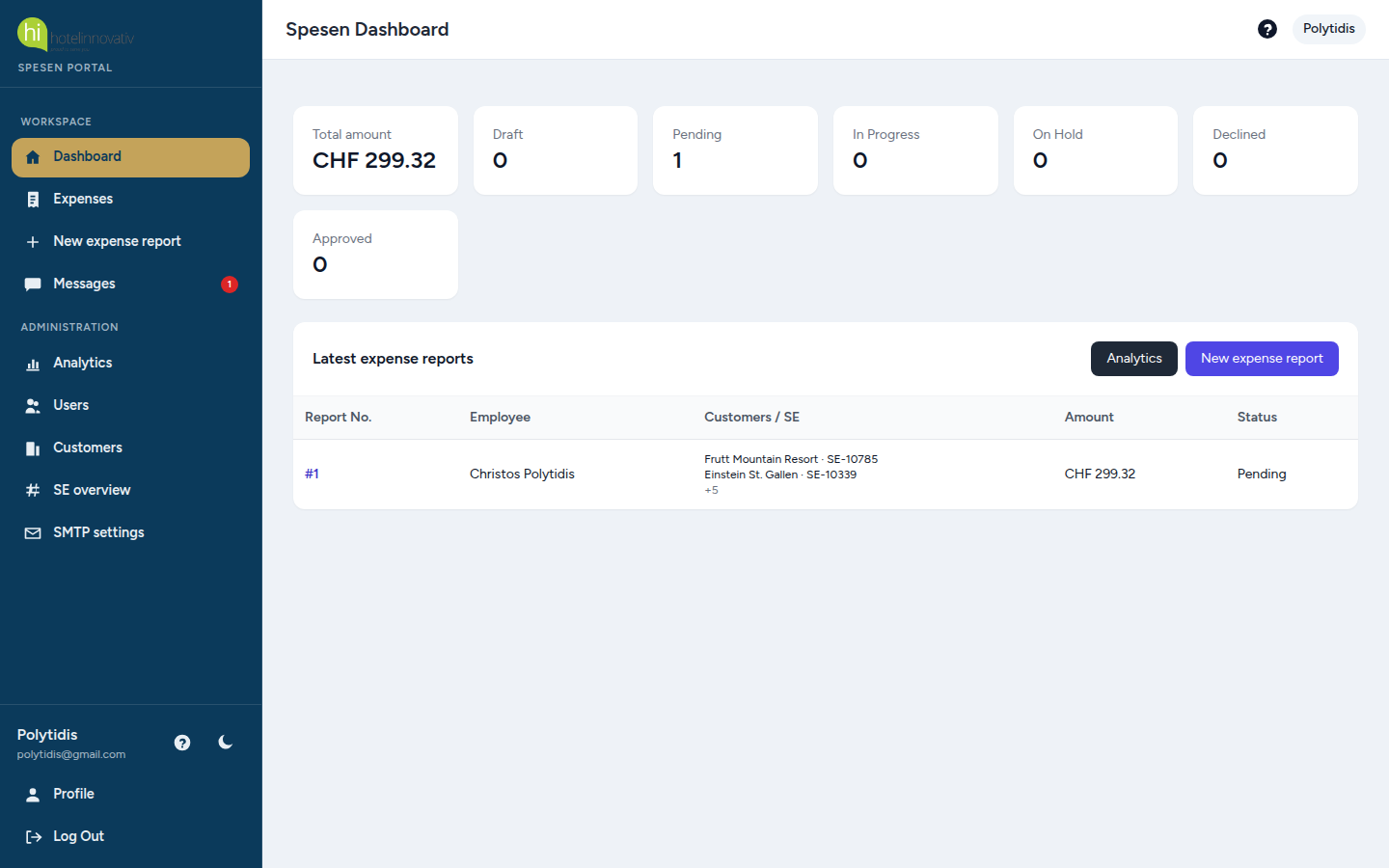
On a computer, the menu is a left sidebar (Dashboard, Expenses, Messages, and admin tools if you are an administrator). The question mark next to your name opens this guide.
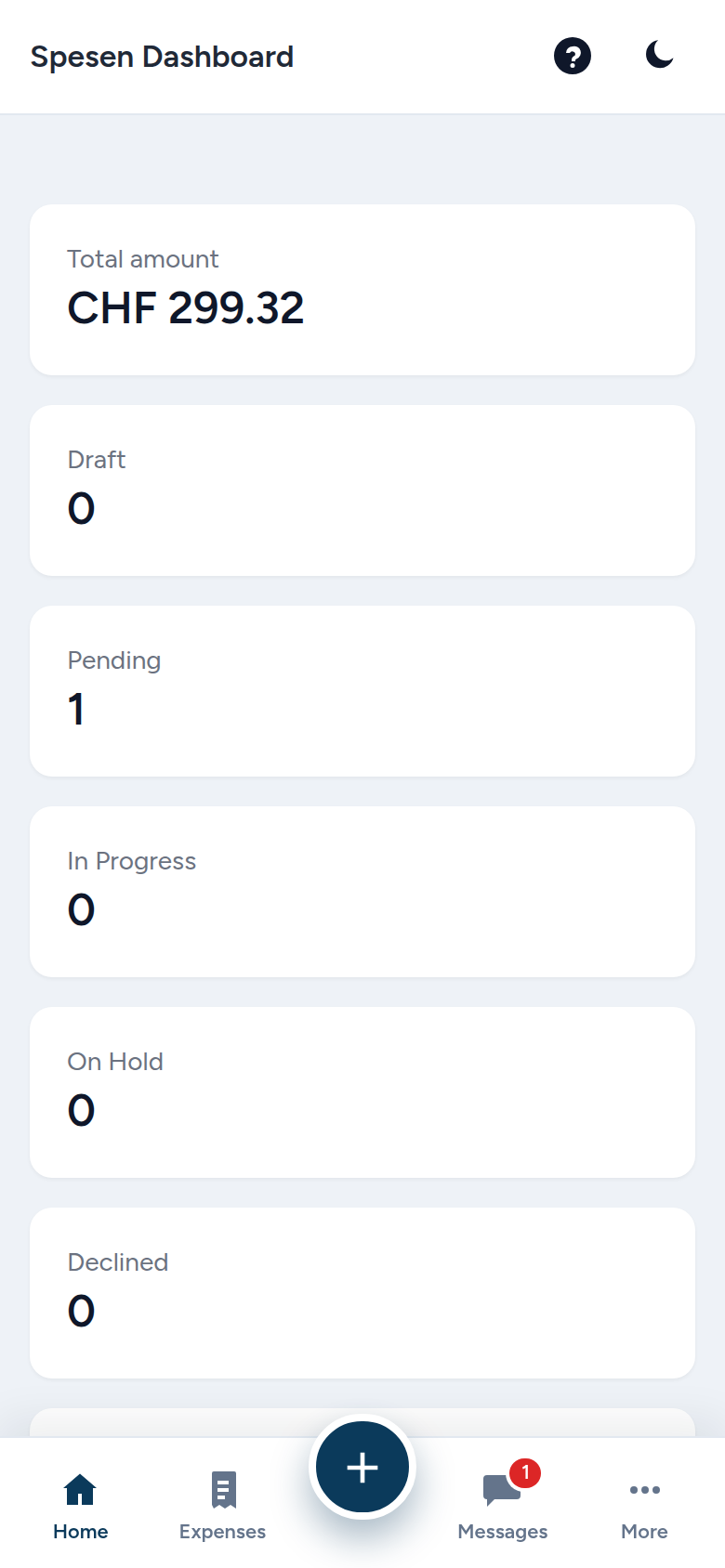
On a phone there is no hamburger menu. Use the bottom bar:
- Home — dashboard
- Expenses — your reports
- Centre + button — start a new expense report immediately
- Messages — inbox (red bubble = unread count)
- More — help, theme, profile, logout, admin pages
3. Light / dark theme
Tap the sun/moon icon (top bar, sidebar, or More). The app remembers your choice. Dark mode uses high-contrast text on dark surfaces so amounts and status labels stay readable.
4. Create an expense report
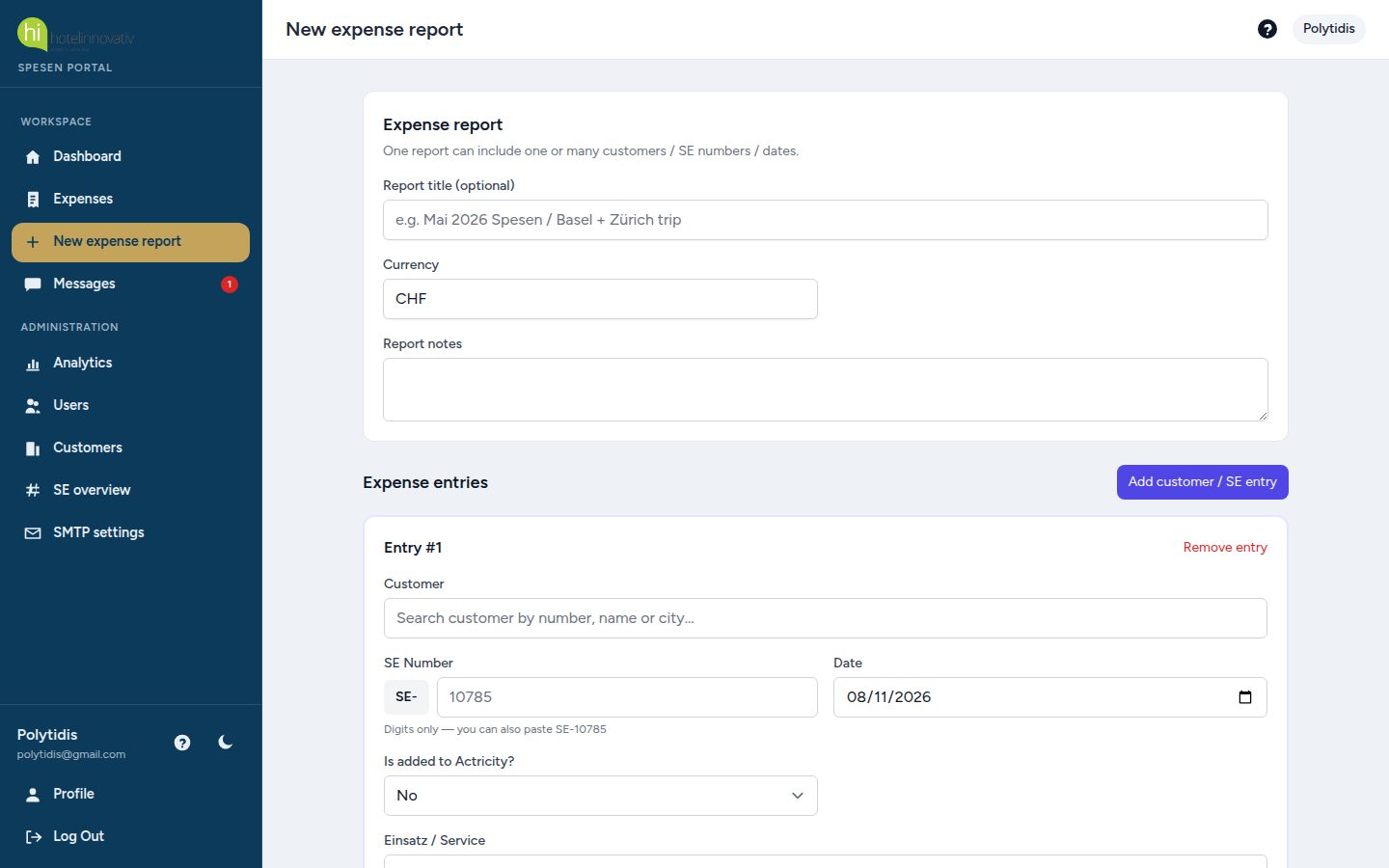
Press the green/navy + on the phone, or New expense report in the sidebar. One report can contain several customers / SE numbers / dates.
- Optional title (e.g. “July 2026”).
- For each entry: date, customer (search), SE number (5 digits, e.g. 10785), Einsatz/Service, Actricity Yes/No.
- Add invoice lines: category, amount, who the expense concerns (employees and/or Aushilfe), notes, and photos of receipts.
- Add another customer/SE block if needed.
Aushilfe (temporary help)
If the company hired temporary help (Aushilfe) and you paid their costs, you do not need a user account for them. On each invoice line, under Who does this expense concern?:
- Select Aushilfe (temporary help)… in the people list, or tap Add Aushilfe.
- A window asks for the full name. That name is stored on the report and appears on the print/PDF.
- You can add several Aushilfe names, and you can also select employees if you paid for the team as well.
5. Save vs send to accounting
- Indigo disk = Save as draft in the database (everything: lines, amounts, receipts). No email is sent. You can edit later.
- Green calculator = Send to accounting (confirm). Status becomes pending and accounting is notified.
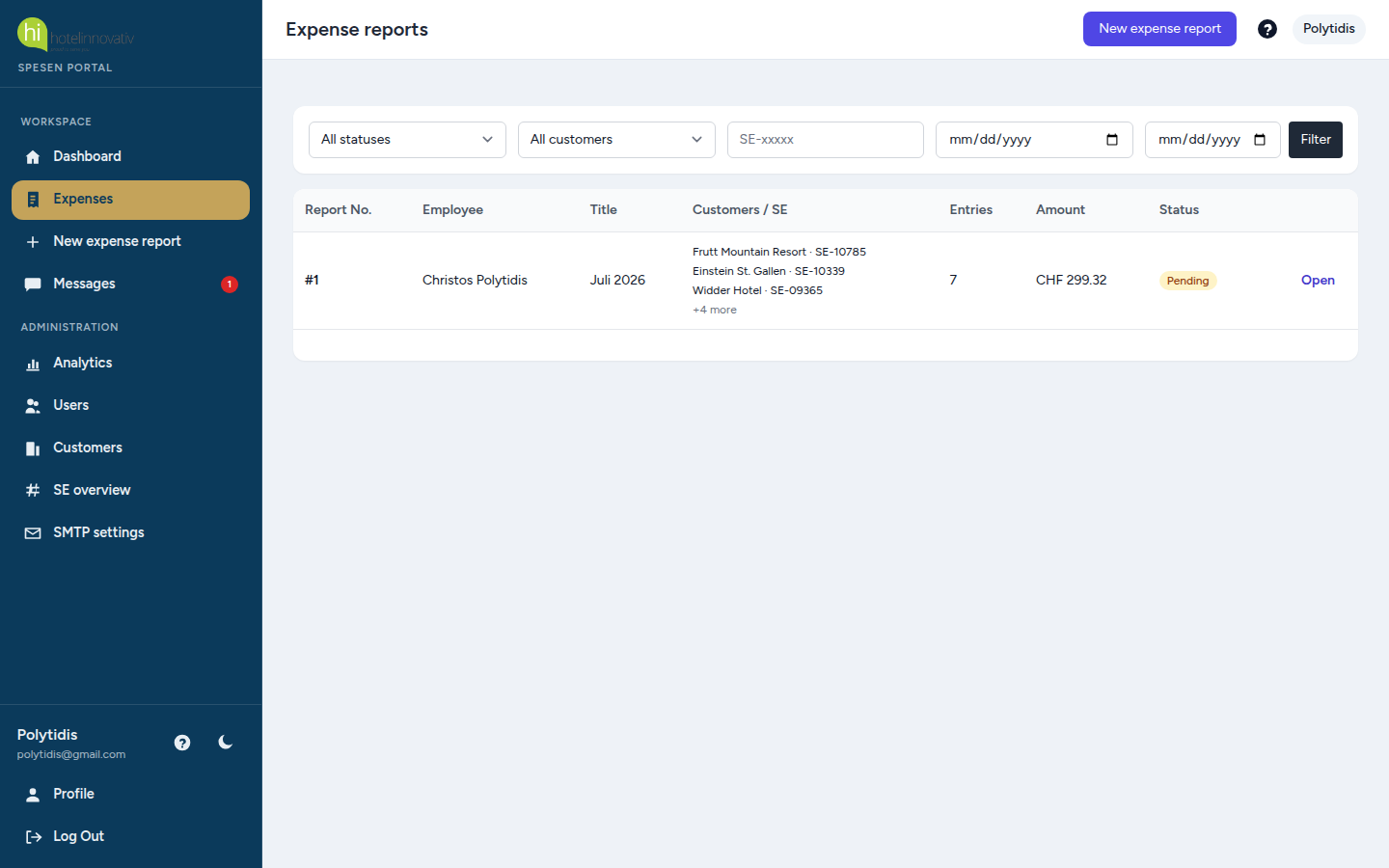
You can send from the report page and from the expenses list (next to Open).
6. Receipt photos
On the phone, use the camera when adding an invoice. Photos are compressed on your device before upload, then stored on the server. PDFs stay as they are. Save writes the full report (including receipts) as a draft in the database — nothing important is kept only on the phone.
7. Print / PDF
Open a report → Print overview → with or without receipt images. Use the browser dialog to save as PDF. Receipts continue under the footer (no wasted blank page).
8. Messages
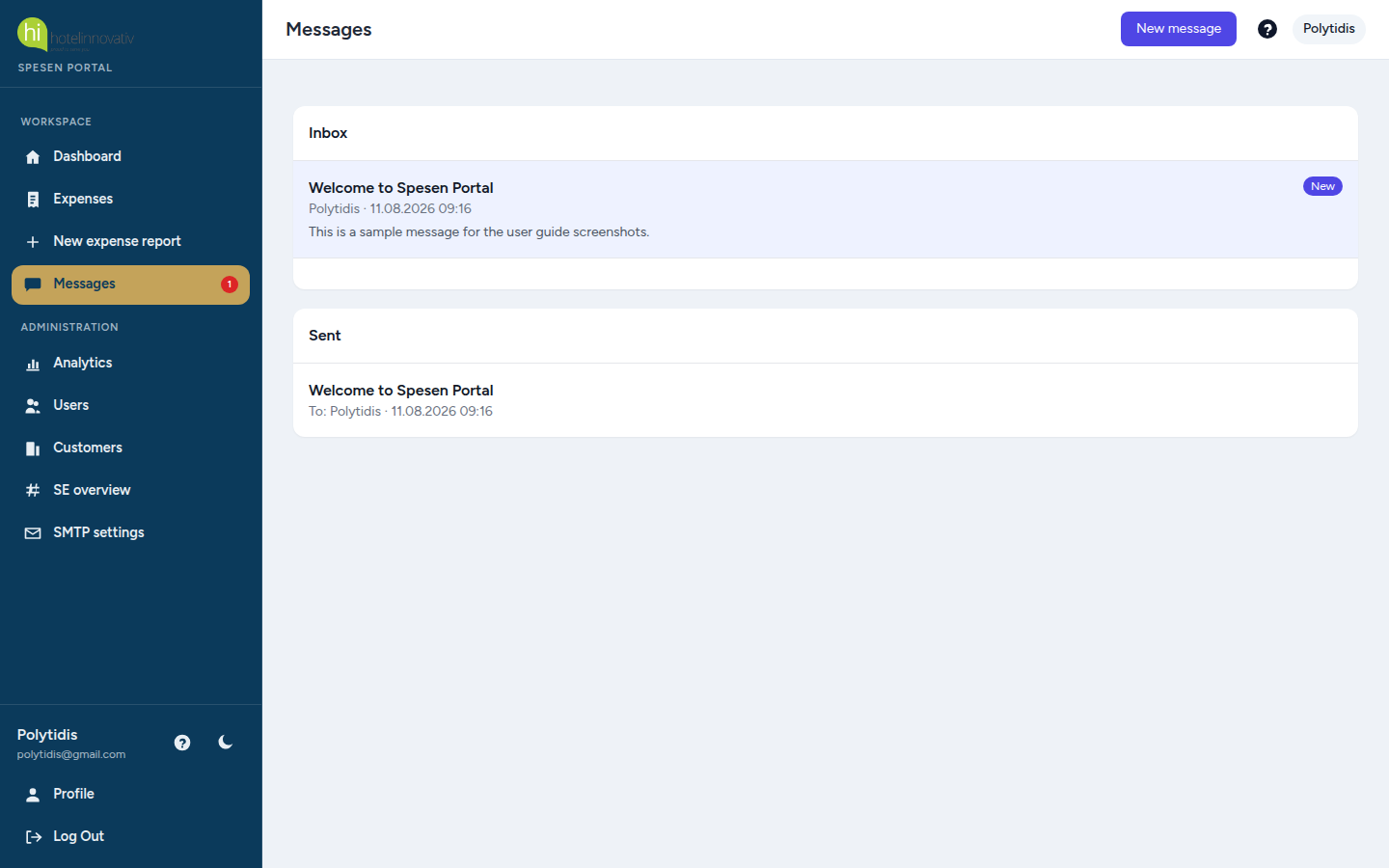
Only admin and accounting can send messages to users. Everyone can read their inbox. New messages show a red bubble on the Messages icon and can also arrive as a phone push notification if you enabled them.
9. Statuses (accounting)
After a report is sent, accounting can set: pending, in progress, on hold, declined, approved. Approved locks the report. The employee is notified by email and push.
Accounting users can also file their own expense reports (save draft, send, then set the status themselves). Other people’s drafts stay hidden until they are sent.
10. Install as an app
On Android Chrome: menu → Install app. On iPhone: Share → Add to Home Screen. Then enable notifications when asked, so status updates and messages appear on the lock screen.
Need help? Use the ? icon next to your name after login, or share this page before accounts are created: https://spesen.hotelinnovativ.tech/docs/en